Despite its robustness, the audio endpoint architecture is not immune to issues. The most common problems include , where the AudioEndpointBuilder service fails to register a newly connected device, often due to driver conflicts or corrupted system files. Another frequent issue is the incorrect default endpoint , especially on laptops that switch between internal speakers, headphones, and HDMI audio. Windows maintains a "default playback device" list, but driver latency or user misconfiguration can cause audio to play through the wrong endpoint. Additionally, exclusive-mode applications can "hog" an endpoint, making it appear unavailable or silent to other programs—a common frustration for gamers and media creators. Troubleshooting these issues typically involves checking the Sound control panel (mmsys.cpl), restarting the AudioEndpointBuilder service via the Services console, or using the built-in audio troubleshooter to reset endpoint configurations.
To grasp the function of an audio endpoint, one must first distinguish it from the physical device. A pair of USB headphones is a physical device; the “Speakers (USB Audio Device)” listed in Windows sound settings is the endpoint. Formally defined in Microsoft’s Windows Driver Kit (WDK), an audio endpoint represents a single, logical connection point for an audio stream. A single physical device can have multiple endpoints. For example, a gaming headset with both playback (speakers) and recording (microphone) functions will appear as two distinct endpoints: one for output and one for input. Similarly, an HDMI monitor with built-in speakers creates an audio endpoint that the operating system treats independently from the video signal. This abstraction allows Windows to manage each audio function separately, applying unique volume levels, effects, or formats to each endpoint regardless of the shared physical connection.
Managing these endpoints is the responsibility of the service. This system service runs continuously in the background, listening for Plug and Play (PnP) events. When a user plugs in a new headset, disconnects a Bluetooth speaker, or even when a driver updates, the AudioEndpointBuilder detects the change. It then dynamically creates, updates, or destroys the corresponding logical endpoints. This process is why, after plugging in a USB microphone, a user almost instantly sees a new input device appear in the sound control panel. The service also maintains the registry of endpoint properties, such as the default format (e.g., 16-bit, 44.1 kHz), custom device names, and user-defined spatial sound settings. Without this dynamic builder, users would be forced to manually restart the audio stack or even reboot the entire system after any hardware change.
In the complex ecosystem of a modern personal computer, the ability to produce and capture sound is often taken for granted. A user clicks "play" on a music file, and sound emerges from speakers; they speak into a microphone, and their voice transmits across the internet. Behind this seamless interaction lies a sophisticated software architecture. At the heart of Windows’ audio capabilities is a critical but often overlooked component: the Windows Audio Endpoint . This logical software interface acts as the crucial bridge between the applications a user runs and the physical hardware—such as speakers, headphones, or microphones—that ultimately produces or consumes sound. Understanding the audio endpoint reveals not just how sound works in Windows, but how the operating system manages flexibility, user control, and reliability in a world of diverse and ever-changing audio hardware.
In conclusion, the Windows Audio Endpoint is a masterful exercise in software abstraction. It transforms the chaotic, heterogeneous world of physical audio hardware—from simple 3.5mm jacks to complex multi-channel USB interfaces—into a consistent, manageable set of logical devices. Through the coordination of the WASAPI and the AudioEndpointBuilder service, Windows grants users fine-grained control over per-application mixing, dynamic device switching, and low-latency pathways for professional use. While not immune to occasional glitches, the endpoint architecture has proven itself as a resilient and flexible foundation. The next time a user seamlessly switches from laptop speakers to Bluetooth earbuds or mutes a noisy game without stopping a podcast, they are witnessing the silent, efficient work of the Windows Audio Endpoint—the unsung conductor of the PC’s digital orchestra.
The true sophistication of the audio endpoint architecture becomes evident when examining the , introduced with Windows Vista. WASAPI manages the flow of audio data between user-mode applications and the kernel-mode audio drivers. At the core of this API is the concept of the endpoint as a session manager. Each application that plays or records sound connects to a specific audio endpoint. This architecture enables several critical features. First, it allows for per-application volume control —the familiar volume mixer in Windows where one can mute a web browser while keeping a game loud. Second, it permits audio ducking , where Windows can lower the volume of background applications (like music players) when a communication app (like Skype) is actively using a microphone endpoint. Finally, WASAPI can operate in two modes: shared mode , where multiple applications mix their streams together, and exclusive mode , where an application takes complete control of an endpoint for low-latency professional audio work.
Bài viết liên quan

Ưu đãi hấp dẫn cho sinh viên, tài xế, khách hàng cũ
10-05-2025 11:39
Tải ngay phần mềm Adobe Photoshop CC - Chỉnh sửa ảnh chuyên nghiệp
01-11-2023 17:25
Photoshop được phát triển và xuất bản bởi Adobe, là một chương trình chỉnh sửa đồ họa mạnh mẽ được sử dụng bởi các chuyên gia cũng như những người đam mê. Nó có sẵn cho cả Mac OS và Windows và đã trở thành tiêu chuẩn công nghiệp để chỉnh sửa hình ảnh.
Tải phần mềm iTools - Quản lý các thiết bị Apple
01-11-2023 17:13
Trong thời đại kỹ thuật số ngày nay, nhu cầu ngày càng tăng đối với các công cụ cho phép người dùng thao tác cài đặt thiết bị của họ và bỏ qua một số hạn chế nhất định. Một công cụ như vậy đã trở nên phổ biến là iTools.
Hướng dẫn Download AMIDuOS
01-11-2023 17:06
Trong thế giới công nghệ đang phát triển nhanh chóng, Android đã nổi lên như một trong những hệ điều hành phổ biến nhất cho cả người dùng và nhà phát triển. Giao diện thân thiện với người dùng và tùy chọn tùy chỉnh đã trở thành lựa chọn nhiều người.

Hướng dẫn Download Foxit Reader
01-11-2023 17:00
Trong thế giới kỹ thuật số ngày nay, các tệp PDF đã trở thành một phần thiết yếu trong cuộc sống cá nhân và nghề nghiệp của chúng ta. Cho dù bạn là sinh viên, chuyên gia kinh doanh khả năng đọc, tạo, ký và chú thích tài liệu PDF là quan trọng. windows audio endpoint

Hướng dẫn Download KaraFun
31-10-2023 17:27
Karaoke không chỉ đơn thuần là thể hiện những giai điệu yêu thích của bạn; đó là một trải nghiệm biến đổi mang lại niềm vui, tiếng cười và những kỷ niệm khó quên. Cho dù bạn đang muốn giải phóng siêu sao bên trong mình, kỷ niệm một dịp đặc biệt.
Hướng dẫn Download Camtasia Studio
31-10-2023 16:59
Camtasia Studio là một công cụ phần mềm mạnh mẽ cho phép bạn tạo các video chất lượng chuyên nghiệp một cách nhanh chóng và dễ dàng. Cho dù bạn là giáo viên muốn giáo dục học sinh của mình, nhà tiếp thị muốn truyền cảm hứng cho khán giả.
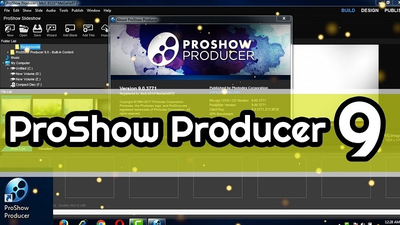
Hướng dẫn Download ProShow Producer 9
31-10-2023 16:44
Chào mừng bạn đến với hướng dẫn toàn diện về Photodex ProShow Producer 9. Cho dù bạn là một nhiếp ảnh gia chuyên nghiệp muốn tạo các trình chiếu tuyệt đẹp hay một người có sở thích muốn gây ấn tượng với bạn bè và gia đình của mình.

Hướng dẫn Download GOM Player
31-10-2023 16:34
Bạn có mệt mỏi khi phải vật lộn để tìm một trình phát đa phương tiện có thể xử lý tất cả các nhu cầu về video và âm thanh của mình không? Không đâu khác ngoài GOM Player, trình phát đa phương tiện được xếp hạng hàng đầu được phát triển bởi GOM & Company. Despite its robustness, the audio endpoint architecture is
Hướng dẫn Download Unity Player
31-10-2023 16:19
Thế giới trò chơi đã được cách mạng hóa bởi các công nghệ tiên tiến và công cụ trò chơi mạnh mẽ. Một công cụ trò chơi như vậy đã trở nên phổ biến rộng rãi đối với các nhà phát triển cũng như game thủ là Unity Technologies của Unity Technologies.

Phần mềm Adobe Illustrator là gì? Công dụng của phần mềm là gì?
31-10-2023 16:10
Trong thế giới thiết kế đồ họa, Adobe Illustrator là một công cụ mạnh mẽ cho phép các chuyên gia biến tầm nhìn sáng tạo của họ thành hiện thực. Cùng mình khám phá về phần mềm này nhé.
Hướng dẫn Download FL Studio
31-10-2023 16:01
Trong thế giới sản xuất âm nhạc, việc có các công cụ phù hợp có thể tạo nên sự khác biệt. Một phần mềm đã trở nên vô cùng phổ biến đối với các nhà sản xuất là FL Studio.
Tin tức mới
Sản phẩm mới